Content builders, facilitators and workspace admins
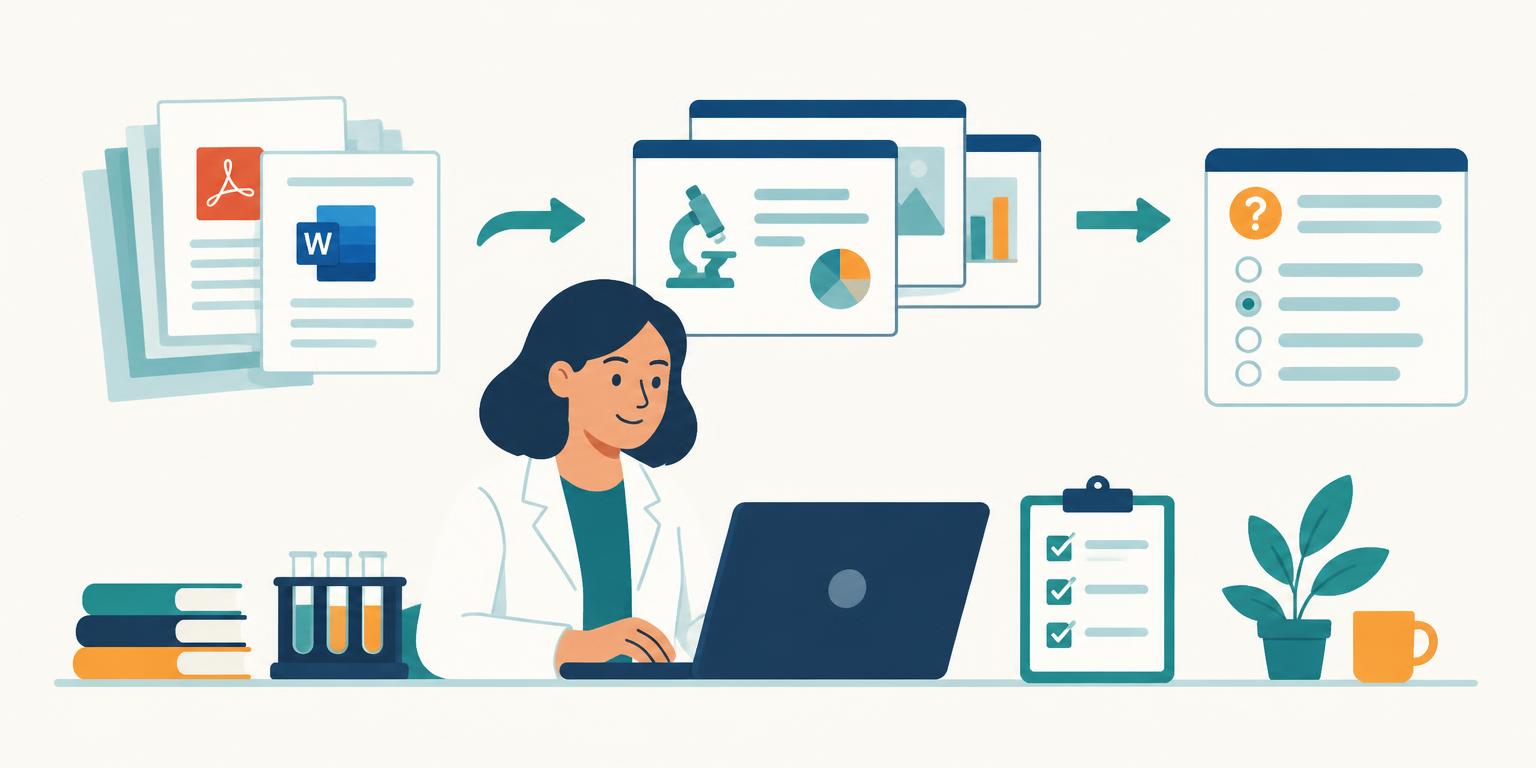
Build training and test your team
A step-by-step guide for people who create content and run tests.
Updated 17 November 2026
Before you start
- You have been invited and can sign in with that email.
- You have your source documents ready (PDF, Word or PowerPoint).
- The people you want to test are in a group (or you have their email addresses).
Step 1
Sign in
Your invited email decides which groups and content you can see.
- 1Open the app and choose Sign in.
- 2Use the email address you were invited with, or Continue with Google.
- 3You land on the Dashboard. The menu on the left takes you everywhere else.
Tip: If you see only My assignments, ask your workspace admin to invite you as staff.
Competency Assessment
Work email
Password
Use your invited email
Step 2
Start new content
Each piece of content holds the training slides and the test that goes with them.
- 1In the menu, choose Content.
- 2Press New content. (Use New test if you only want questions, no slides.)
- 3Type a title, choose the group that owns it and press Create draft.
Content
- Serology basics - Draft
- Specimen labeling - Published
Start here
Step 3
Add your documents and draft with AI
The AI reads your documents and builds slides from them, so the facts come from your sources.
- 1On the content page, under SOP documents, press Add SOPs and choose every SOP for this training. Use the arrows to set the order learners should read them.
- 2To build a test straight from the SOPs, press Create questions from these SOPs. It opens (or starts) a question draft and drafts questions from your SOPs right away; learners keep the current version until you publish.
- 3Press Update slides from SOPs (AI). The AI reads every SOP in that order. You can also press Draft with AI and drag files in directly.
- 4Optional: pick an Example to match so the slides copy the look of a module you like. Choose one already in the app or From your computer.
- 5Add the Audience and any Extra notes or instructions, then press Draft with AI.
Tip: Drafting can take a minute. Nothing is saved or shown to learners yet.
Draft with AI
Module title
Audience
Drop your PDFs, Word or PowerPoint files here
Example to match (optional)
Builds the outline
Step 4
Check the outline
Fixing the plan first is quicker than fixing finished slides.
- 1Read the slide titles in the outline. Edit, move or remove any that are wrong.
- 2If documents disagree, read the Source conflicts box and decide which is right.
- 3Press Build N slides to create the finished slides with pictures and speaker notes.
Check the outline
- 1. What serology tests detect
- 2. Sample requirements
- 3. Running the test
Source conflicts
Two SOPs give different storage times
Then build
Step 5
Review the slides and pictures
You decide what the learner sees. Not every slide needs a picture.
- 1Look through each slide in the preview.
- 2Turn Picture on this slide on or off. Press Create picture to make or redo one.
- 3Fix anything marked [verify] - the AI could not find it in your documents.
- 4Press Save as draft when it looks right.
Tip: With an example chosen, press Compare with the example deck to see them side by side.
Preview your slides
Save when happy
Step 6
Polish the slides (optional)
Small edits are easy to make inside the app.
- 1Click a slide in the list to change its text, Layout or picture, then press Save slide.
- 2Press Learner preview to see exactly what learners will see.
- 3Use Content agent to ask for changes in plain words, for example "make slide 4 simpler". Press Review changes, then Apply to draft.
- 4Press PowerPoint or PDF to download a copy.
Slides
Check the learner view
Step 7
Add the test questions
Questions written from the slides keep the test fair and on topic.
- 1Press Generate questions, choose how many, pick Draft from: Slides, SOP documents or Both, then press Draft questions from slides (or Draft questions from SOPs). Slides kept as-is are read from their pictures.
- 2Read each suggestion and press I reviewed it — accept, or Discard it.
- 3To add your own, press Add question. Mark the correct answer and press Save question.
- 4Set the pass mark and press Save draft details.
Tip: Multiple-choice and true/false questions are scored automatically. Short answers need you to mark them.
Questions
How long can a serum sample be stored at 2-8 C?
- 24 hours
- 7 days
- 30 days
AI drafts, you check
Step 8
Publish and choose who to test
Publishing locks this version so everyone gets exactly the same test.
- 1Press Test people.
- 2Step 1: press Publish and continue. (This is blocked until every question is reviewed and has an answer.)
- 3Step 2: choose Whole group, Hand-pick people, or New by email (one email per line).
- 4Step 3: set a due date and attempt limit, then press Assign to N.
Test people
- 1. Review & publish
- 2. Who
- 3. When
- 4. Share
Pick your learners
Step 9
Share the test
Learners open the test with a link or a QR code and sign in with their roster email.
- 1Step 4: press Copy link next to a person to send them their link.
- 2Or press Print to put the QR code on a notice board.
- 3Learners also get an email right away listing what you just assigned, if email is switched on for your workspace. This happens every time you assign, even on the same day.
- 4Press Done.
Test people
- 1. Review & publish
- 2. Who
- 3. When
- 4. Share
- Alex Rivera - link ready
- Sam Lee - link ready
Send to each learner
Step 10
Follow progress and mark answers
Results show who has finished, passed or still needs marking.
- 1Open Results. The Review queue lists short answers waiting for a mark.
- 2Open an answer, give the points and a note, then save.
- 3To give someone another try, open Assignments and press Retake. Earlier results are kept.
- 4Open Reports to print or download a record for an inspector.
Results
- Alex Rivera - Awaiting review
- Sam Lee - Passed 90%
Mark these
Step 11
Update or remove content later
Published versions stay locked so past results never change.
- 1To update, open the content and press Edit (new draft) — or, to just add questions, press Add or edit questions in the Questions section (it says Open draft vN if a draft already exists). Make changes, then Publish vN. People who haven't started yet can be switched with Move them to vN; anyone who started keeps their version.
- 2To revise slides from new documents, press Upload documents (PDF / Word / .pptx) and choose to add to or replace the slides.
- 3To rename content, press Rename on the content page or the pencil in the Content list. Published versions and past reports keep their old name.
- 4To find content quickly, type in Search all columns on the Content list, or click any column heading to sort.
- 5To make learners finish the slides first, tick Must finish before the assessment in the Training slides section.
- 6Uploading one PowerPoint or PDF deck asks how to import it: Use as-is keeps every slide exactly as it looks (ready to publish, still editable), or Convert to editable slides turns it into simple text slides. Then press Draft questions from slides to build a test from it.
- 7To remove content nobody was ever tested on, press the bin icon in the Content list.
- 8Content that was already used can only be archived, so its history is kept.
Serology basics
- v2 - Draft
- v1 - Published - locked
Makes a new version
Quick help
- I can't publish.
- A question still needs review or has no correct answer. Open each flagged question and save it.
- A learner can't see their test.
- Their sign-in email must exactly match the email in People. Check for typos.
- I changed a published test but learners see the old one.
- Existing assignments keep the version they were given. Assign the new version to test people on it.
- The AI added something wrong.
- Edit the slide or question. Anything marked [verify] was not found in your documents.
What’s new in this guide
- 17 November 2026: The separate Training module box is gone: Must finish before the assessment now sits in the Training slides section, and finished PDF decks can be kept as-is too. Questions can be drafted from slides, SOP documents or both, and slides that are only pictures are read too. Content can be renamed with Rename, and the Content list can be searched and sorted by any column.
- 16 November 2026: Content pages now have an SOP documents list. Add several SOPs, set their order, then press Update slides from SOPs (AI) to build one set of slides in that order before drafting the test.
- 12 November 2026: PowerPoint files can now be used as-is: every slide looks exactly as uploaded, and you can still edit slides or draft questions from it.
- 12 November 2026: Each new assignment now emails the learner right away, even if they already got an email that day. Reminders still come at most once a day and list everything still open.
- 1 November 2026: New simplified staff and learner guides with pictures, print and PDF download.
- October 2026: Draft with AI now shows an outline and source conflicts before building slides, and slides can be downloaded as PowerPoint.
Looking for the other guide? Take your training and test · Full reference in the user guide.
Pictures are simplified drawings with made-up names, not real records.