Help & documentation

User guide

From your first sign-in to an inspection packet: instructions for learners, facilitators and administrators.

Screenshots are read-only documentation previews of the real screens, not live accounts or assessment results. Ownership and email setup remain pending.

01Everyone

Sign in & access

Use the same verified email address as your staff invitation or roster entry.

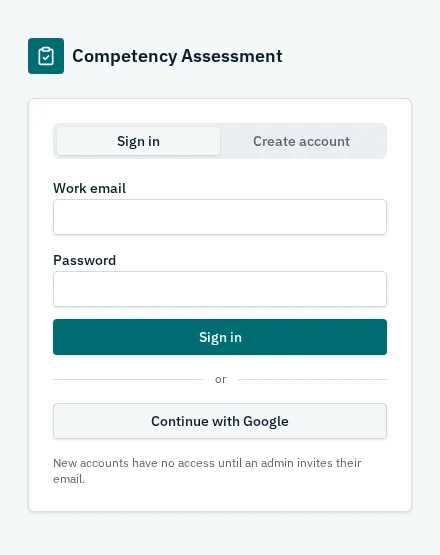
  1. Open Sign in. Enter your work email and password, or choose Continue with Google.
  2. For a new account, choose Create account and follow the confirmation email before returning to sign in.
  3. Learners open My assignments or the assessment link they received. No facilitator invitation is needed to take your own assessment.
  4. Staff access requires an administrator's role invitation. Facilitators also need membership in the groups they manage.

Important

  • Awaiting access means your account does not have a staff role. It does not prevent you from opening your own assignments.
  • Users cannot choose their own privileges. App owners are added by an existing owner in Settings > Owners; a listed person claims ownership after signing in with that verified email.
  • Never share a password. Sharing an assessment link does not give another person access to your assignment.
Sign in and create-account choices
Sign in and create-account choices · Documentation preview
02Facilitators & admins

Dashboard & navigation

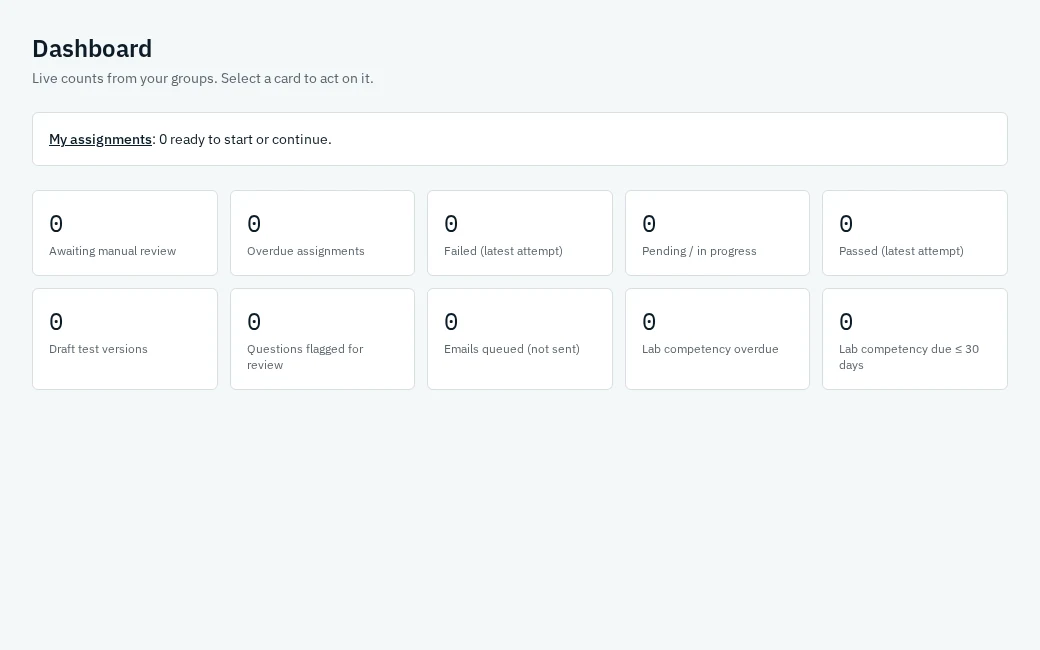
The Dashboard brings together work needing attention in the groups you can manage.

  1. Select a count for manual review, overdue assignments, failed attempts, draft tests, flagged questions, queued emails or laboratory due dates to open the relevant page.
  2. Open My assignments for assessments assigned to you personally.
  3. Use the left navigation to switch pages. On smaller screens, open the navigation menu at the top.

Important

  • Counts come from records you are authorized to access. Zero means no matching records; it is not a sample result.
  • Queued emails are not sent emails. Laboratory due dates are not proof of demonstrated competency.
Dashboard with empty preview counts
Dashboard with empty preview counts · Documentation preview
03Facilitators & admins

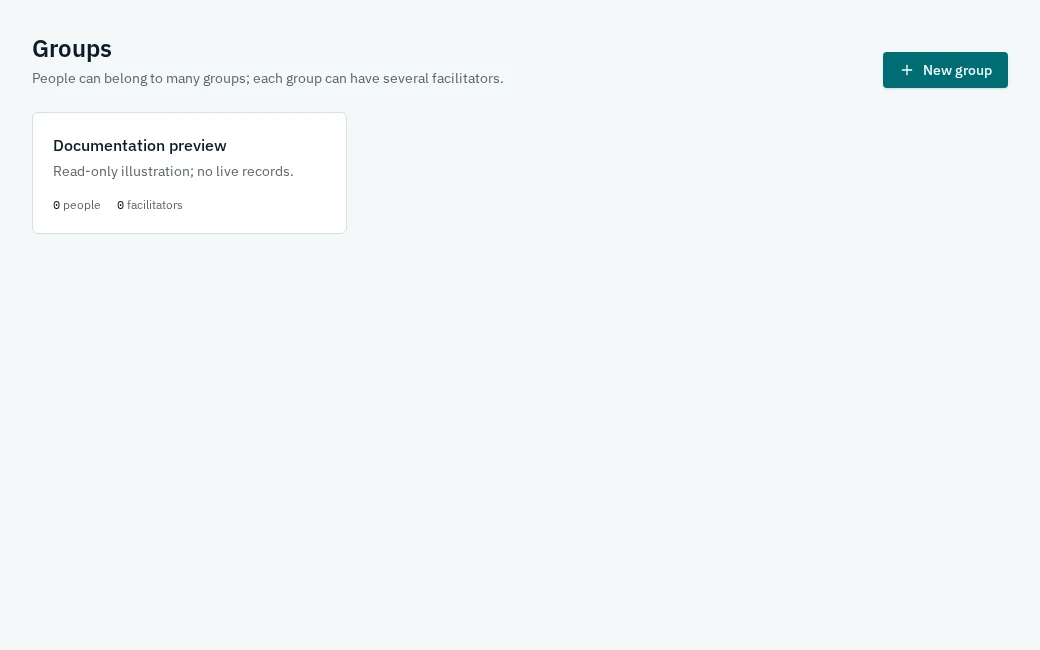
Groups & facilitators

Groups determine which staff can manage a roster, tests, assignments and results.

  1. An administrator opens Groups → New group, enters a name and description, and creates the group.
  2. Open a group to manage its people. Add available people to the roster or remove membership when appropriate.
  3. An administrator adds facilitators to the group. Grant the facilitator role first in Settings if necessary.
  4. A person can belong to multiple groups, and a group can have multiple facilitators.
  5. Archive a group when it is no longer active; retain its historical records.

Important

  • Facilitators manage only their assigned groups. They cannot grant roles or manipulate other groups' membership.
  • Removing membership is not the same as deleting a person's history. Archived records retain attempts, evidence and reports.
Groups list with one documentation-only group
Groups list with one documentation-only group · Documentation preview
04Facilitators & admins

People & roster imports

Create roster entries with reliable identity information before assigning an assessment.

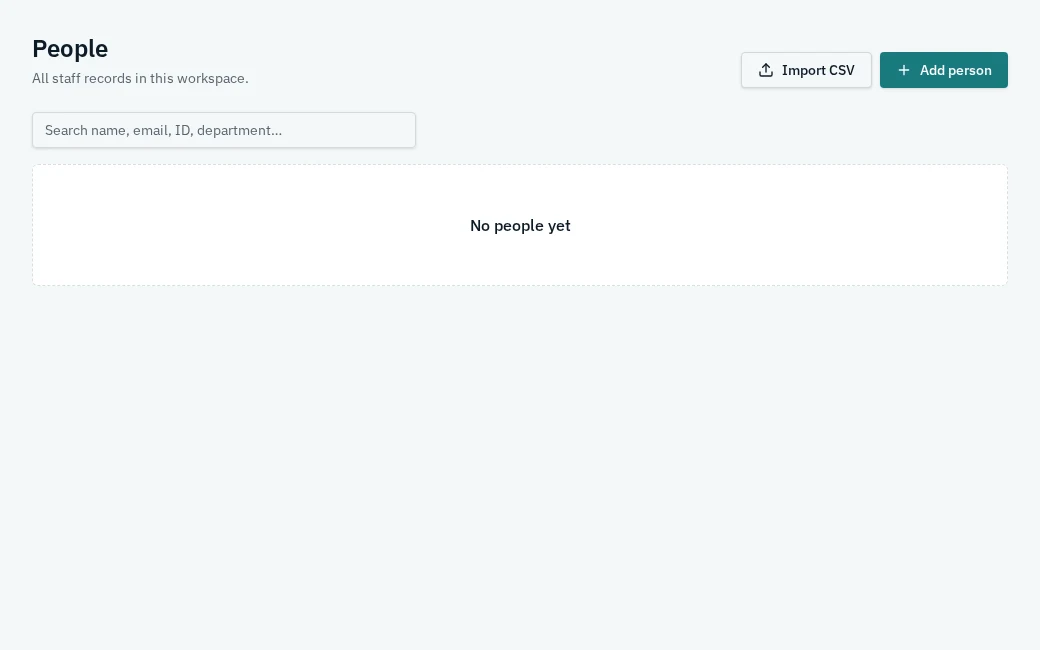
  1. Open People → Add person. Enter the person's details, email and employee identifier where available; select the appropriate group.
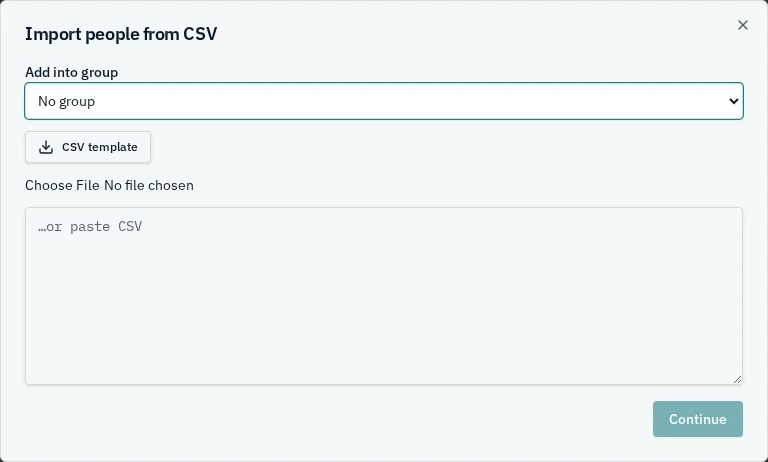
  2. For bulk entry, choose Import CSV → CSV template. Populate the template without changing the meaning of its columns.
  3. Select the destination group, upload the CSV or paste its contents, then choose Continue.
  4. Map the source columns, preview the records and resolve duplicate emails or validation issues before confirming the import.
  5. Search the roster to find and edit a person. When history exists, archive the record rather than deleting it.

Important

  • The roster email must match the learner's verified sign-in email. Check spelling before sending links.
  • Facilitators create people within a group they facilitate. Administrators can manage the workspace roster.
  • Import preview does not save records. Review the full preview before committing; quoted commas and multiline fields are supported.
People search and entry controls
People search and entry controls · Documentation preview
CSV template, destination group and upload/paste choices
CSV template, destination group and upload/paste choices · Documentation preview
05Facilitators & admins

Author tests & publish versions

Drafts are editable. Published versions are fixed records used by assignments and attempts.

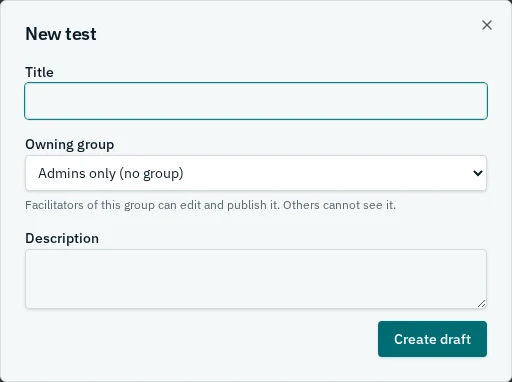
  1. Open Content → New test. Enter a title, owning group and description, then choose Create draft.
  2. In the editor, set the pass threshold and add questions. Choose multiple choice, true/false or short answer, and enter the prompt and points.
  3. For multiple choice, enter options and tick every correct answer. For true/false, select the correct answer. For short answers, enter accepted answers and an explanation to guide manual review.
  4. Review every question and resolve flagged keys. A missing answer key is never invented automatically.
  5. Choose Publish vN after reviewing the draft. A published version cannot be edited.
  6. To revise a published test, choose Edit (new draft), update and publish a new version. Existing attempts keep their original version.
  7. Archive a retired test to prevent new assignments while preserving history.

Important

  • Facilitators can author and publish tests for their groups. Admins-only tests are not global content for arbitrary facilitators.
  • Points determine each question's weight. Short answers remain pending until manually graded, even when accepted answers are entered.
  • Discarding a draft does not erase published versions or historical attempts.
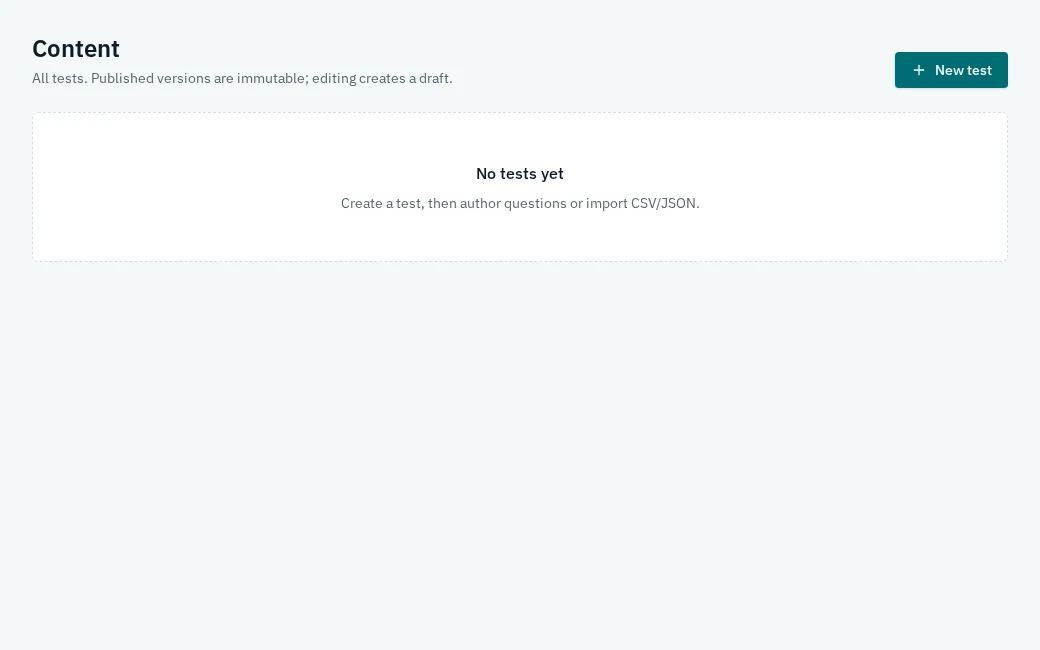
Content list and New test
Content list and New test · Documentation preview
Create a draft and choose its owning group
Create a draft and choose its owning group · Documentation preview
06Facilitators & admins

Import questions: CSV, JSON or paste

Start with the downloadable question templates and review the import before adding questions to a draft.

  1. Open an editable test draft → Import. Download a CSV or JSON template.
  2. Populate the template with prompts, supported question types, points, options and explicit answer keys. Use the template's answer format rather than guessing.
  3. Upload or paste structured content. For CSV, map the input columns to the requested fields.
  4. Review the preview and validation messages. Correct malformed data or missing keys; flagged questions need authored review before publishing.
  5. Confirm the import to add questions to the selected draft, then inspect them in the editor.

Important

  • Import never infers correct answers. Do not treat automatically parsed text as a reviewed assessment.
  • Automatic PDF question extraction is not provided. Convert content to a template or paste structured content for review.
  • Import only into a draft, not a published version. For short-answer grading, record a clear accepted-answer basis and explanation.
Start with an editable draft before importing questions
Start with an editable draft before importing questions · Documentation preview
07Facilitators & admins

Assignments, links & retakes

Assign an exact published version to selected people in a group.

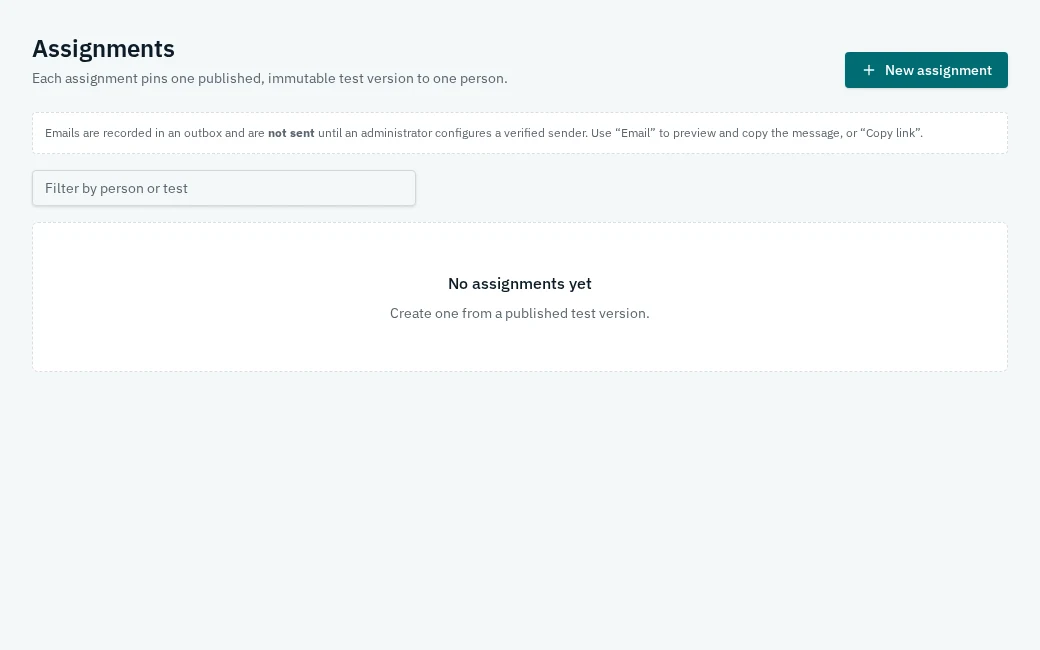
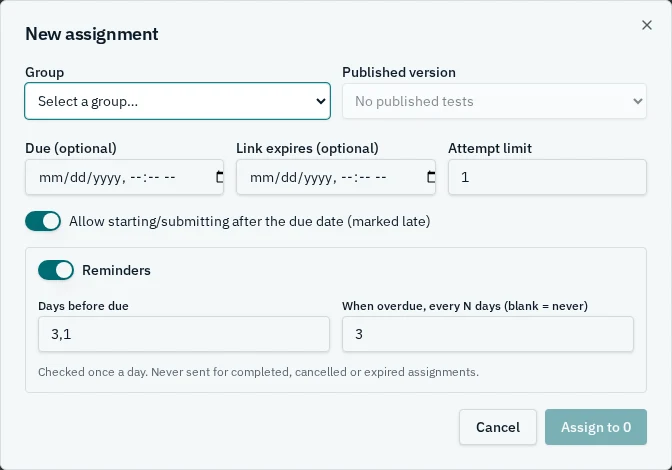
  1. Open Assignments → New assignment. Choose a group and published version.
  2. Select the people to assign in bulk. Set the attempt limit and optional due date and link expiry.
  3. Choose whether starting/submitting after the due date is allowed. When allowed, late submissions are marked late; expiry still blocks access.
  4. Configure reminder days before the due date and an optional overdue repeat interval. Confirm the assignment count.
  5. Use Copy link to share a person's direct assessment link. The recipient must sign in with the matching verified roster identity.
  6. Use Approve retake with a reason when another attempt is warranted. Earlier attempts and results remain in the timeline.
  7. Cancel an assignment if it should no longer be accessible; do not erase prior attempts.

Important

  • An assignment ID is not permission. Another learner cannot take an assignment simply by obtaining its URL.
  • The server enforces deadlines, expiry and attempt limits. Approval of a retake does not erase the old score or automatically extend an expired link.
  • A newer published version does not silently change an existing assignment.
Assignments list and creation controls
Assignments list and creation controls · Documentation preview
Published version, dates, attempt limit and reminders
Published version, dates, attempt limit and reminders · Documentation preview
08Learners

Take your assessment

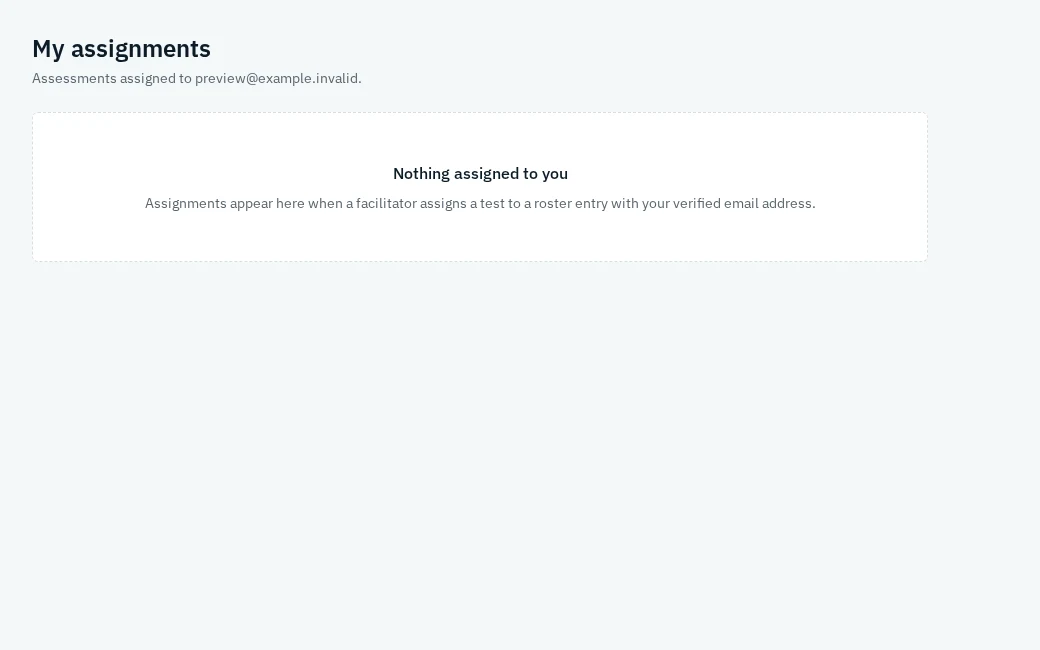
Only assessments assigned to your verified identity appear in My assignments.

  1. Open your direct assessment link, or choose My assignments after signing in.
  2. Review the test version, pass threshold, due/expiry dates, available attempts and any access-blocking message.
  3. Choose Start assessment, or continue an open attempt. Answer multiple-choice, true/false and short-answer questions.
  4. Review your answers, choose Submit and confirm. Submission cannot be undone; unanswered questions may receive no credit.
  5. Check the resulting status and attempt history. Short answers show awaiting manual review until a reviewer finishes grading.
  6. If you need a retake or an unavailable link restored, contact your facilitator.

Important

  • Draft answers are saved in this browser for the open attempt, not as a cross-device backup. Use the same browser to resume unsent answers.
  • Passed means the fully graded assessment met its threshold. It does not establish laboratory competency.
  • If an assessment is unavailable, check your email identity first, then ask the facilitator about cancellation, expiry or attempt limits.
My assignments before any assessments are assigned
My assignments before any assessments are assigned · Documentation preview
09Facilitators & admins

Review answers & track progress

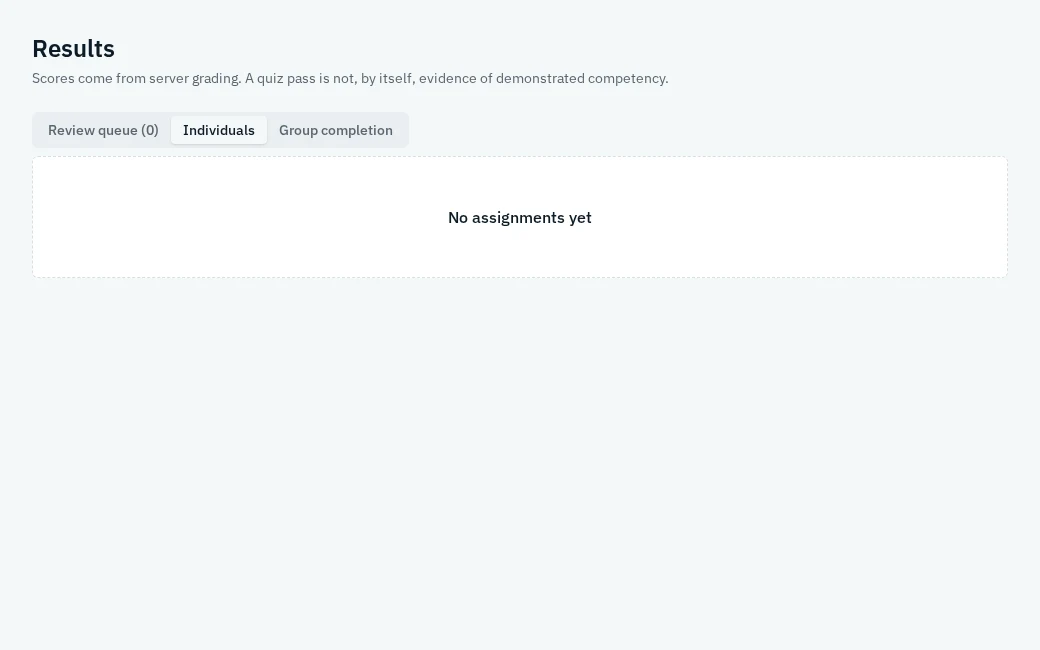
Results separates manual grading, individual history and group completion.

  1. Open Results → Review queue. Open an attempt that is awaiting short-answer review.
  2. Read each response and its rubric / accepted answers. Award points within the question's maximum and save your grading note.
  3. Finish all pending questions before treating an assessment as fully graded or passed.
  4. Use Individuals to view all attempts, first/latest/best graded scores and the attempt timeline.
  5. Use a reviewed correction with a reason when a grade needs changing. Earlier grade entries are retained.
  6. Open Group completion to compare completed and passed counts for people assigned the latest published required version.

Important

  • First, latest and best are different score summaries. Change first → latest is shown only for comparable versions.
  • Completed means the latest attempt is fully graded; passed additionally requires meeting the threshold. Submitted-awaiting-review is not passed.
  • An empty denominator displays N/A, not 0% success. Review queue and timelines are limited to authorized groups.
Review queue, Individuals and Group completion tabs
Review queue, Individuals and Group completion tabs · Documentation preview
10Facilitators & admins

Inspection reports, print, PDF & CSV

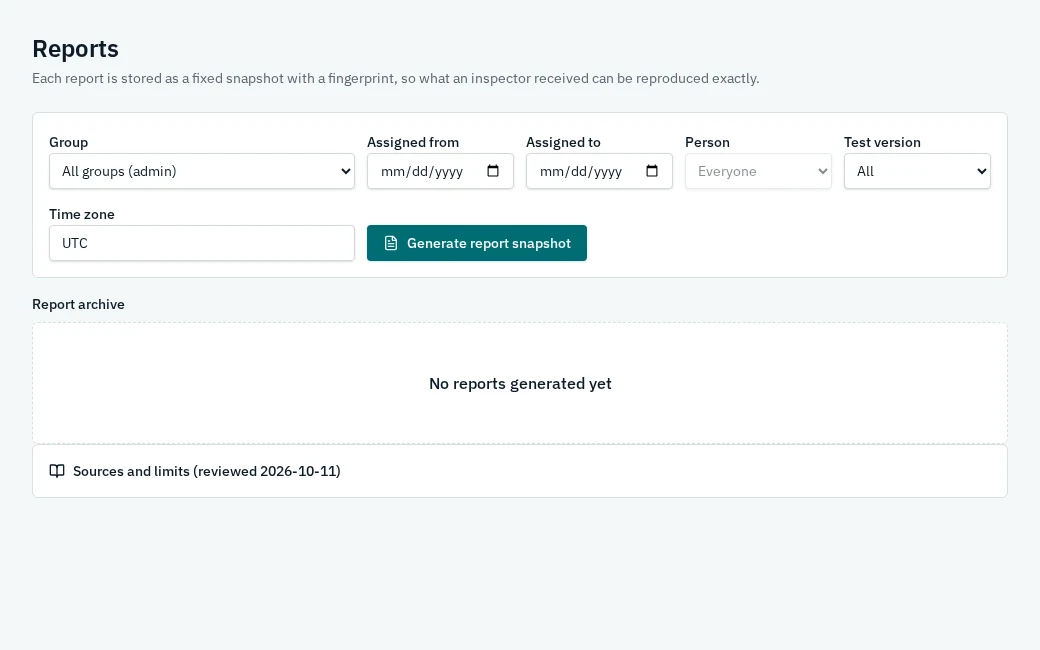
Generate a fixed report snapshot so a later result correction does not change a previously issued packet.

  1. Open Reports. Choose a group, assigned-date range, person, test version and time zone. Admins may select all authorized groups.
  2. Choose Generate report snapshot. Review totals, person identifiers, versions, dates, attempts, scores, corrections and laboratory evidence/sign-offs where recorded.
  3. Use View/Print, PDF or CSV. PDF downloads an actual document; print removes navigation and controls.
  4. Return to Report archive to open or download the same snapshot later. Use Verify to check its stored fingerprint.
  5. Generate a new snapshot when you need updated results; keep the old packet as the historical record.

Important

  • Date filters use assignment dates, not an assumed completion-date range. Time zone is included in the report.
  • Reports preserve the report ID, generation time, filters and dataset fingerprint. Answer keys are excluded from the report dataset.
  • CSV exports protect cells against spreadsheet formula injection. Private snapshots remain limited to authorized group access.
  • Missing evidence or assessor qualification remains a gap, not a compliance certificate. Recommended report fields are not an official universal inspection form.
Report filters, snapshot creation and archive
Report filters, snapshot creation and archive · Documentation preview
11Facilitators & admins

Optional laboratory competency

Generic assessment is the default. The optional laboratory profile supports the CMS/eCFR baseline for moderate/high complexity testing, separately from quiz scores.

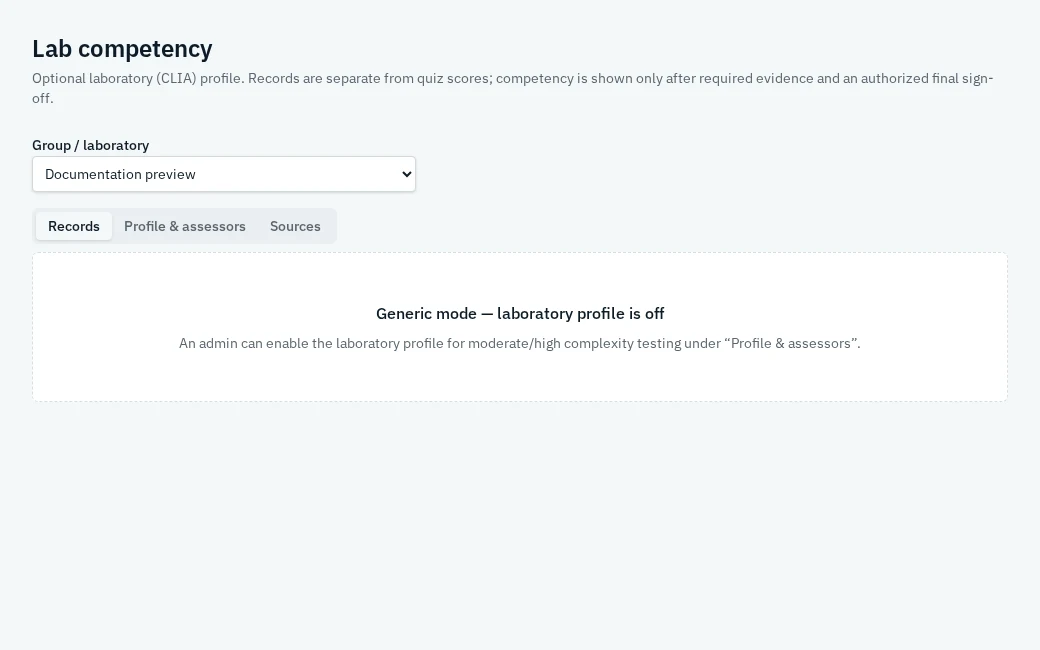
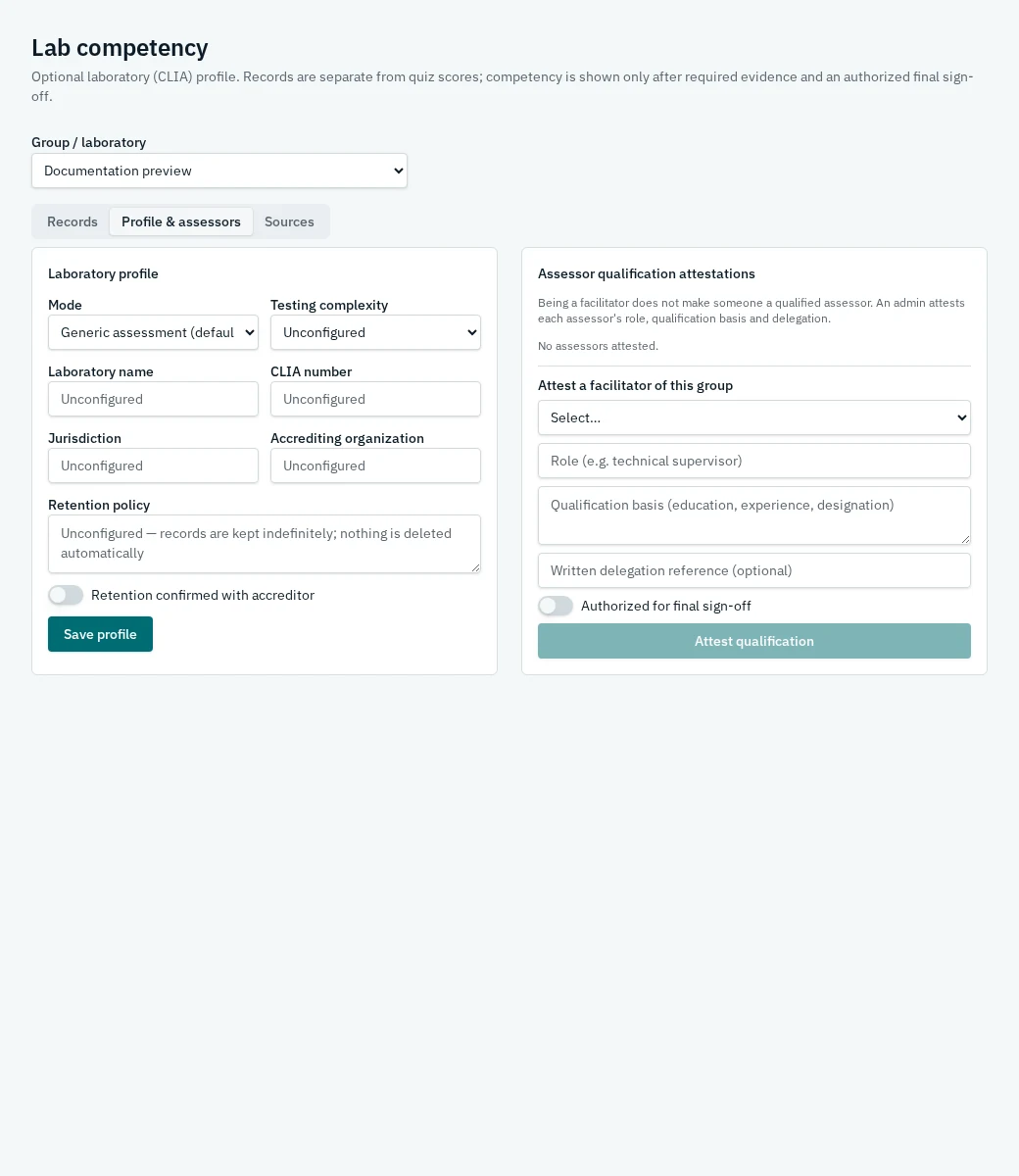
  1. Select the group in Lab competency. An administrator opens Profile & assessors and chooses CLIA mode with a supported moderate/high complexity.
  2. Enter laboratory name, CLIA number, jurisdiction, accrediting organization and retention policy. Confirm retention with the accreditor before marking it confirmed.
  3. An administrator attests assessors' role, qualification basis and any delegation reference. Final sign-off authorization is separate from the facilitator role.
  4. In Records, create the person/procedure/version/cycle record. Set the relevant start and due dates.
  5. Record dated evidence and assessor references for all applicable methods: direct observation; recording/reporting; records review; instrument maintenance/function checks; sample performance; problem solving.
  6. Record remediation and follow-up where needed, then review the evidence gaps. Complete applicable evidence and obtain an authorized, qualified final sign-off before claiming demonstrated competency.
  7. Keep signed records immutable. Append corrections with reasons; preserve prior evidence and sign-offs.
  8. Track first-year 6- and 12-month cycles, annual cycles thereafter, and method/instrument-change reassessment before patient reporting.

Important

  • A quiz pass, complete due-date configuration or facilitator app role does not establish demonstrated competency.
  • Waived and provider-performed microscopy profiles are unsupported here; do not apply moderate/high rules as a blanket requirement.
  • Evidence is stored as text references, not uploaded files. Retention has no universal configured duration and no automatic deletion.
  • Consult the group's accreditor and qualified assessor. No CAP, Joint Commission, ISO certification or blanket CLIA-compliance claim is made.
  • Sources in the application were reviewed 2026-10-11. The official baseline and recommended report fields are identified separately.
Generic mode: the optional lab workflow is off
Generic mode: the optional lab workflow is off · Documentation preview
Laboratory profile and assessor qualification attestation
Laboratory profile and assessor qualification attestation · Documentation preview
12Administrators

Settings, invitations & email

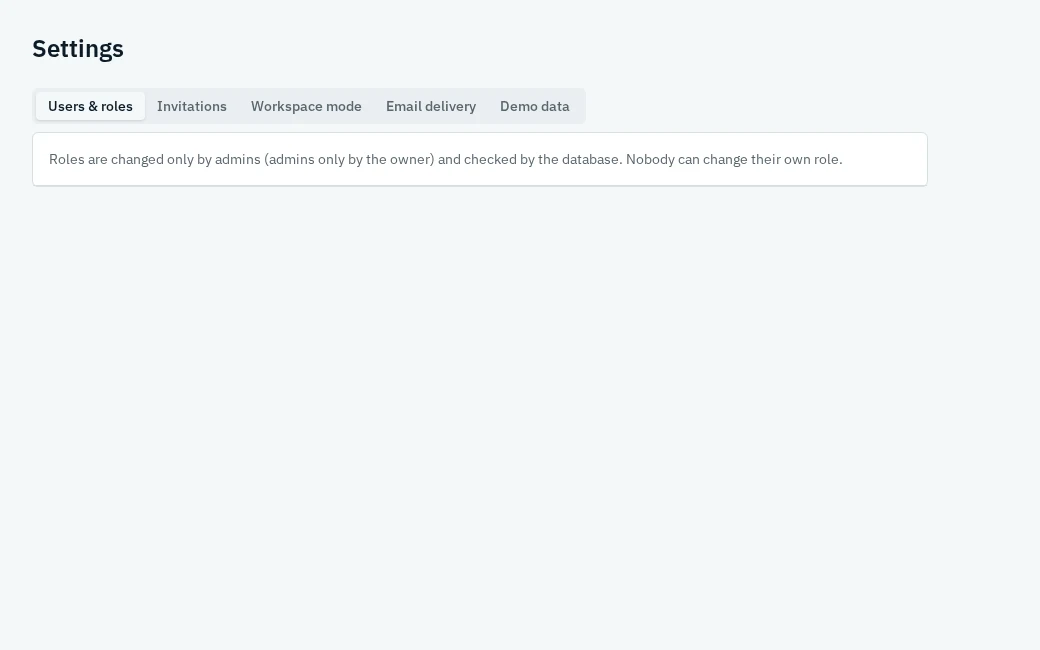
Administrators manage staff invitations, role access and delivery settings; owner-only permissions remain protected.

  1. Use Settings → Invitations to pre-authorize a staff email and role. The recipient signs up and verifies that email; the invitation is then applied.
  2. Use Users & roles to manage permitted roles. Admin roles are changed by the owner; nobody changes their own role.
  3. Assign facilitators to their groups after granting the role. A facilitator role alone does not give access to every group.
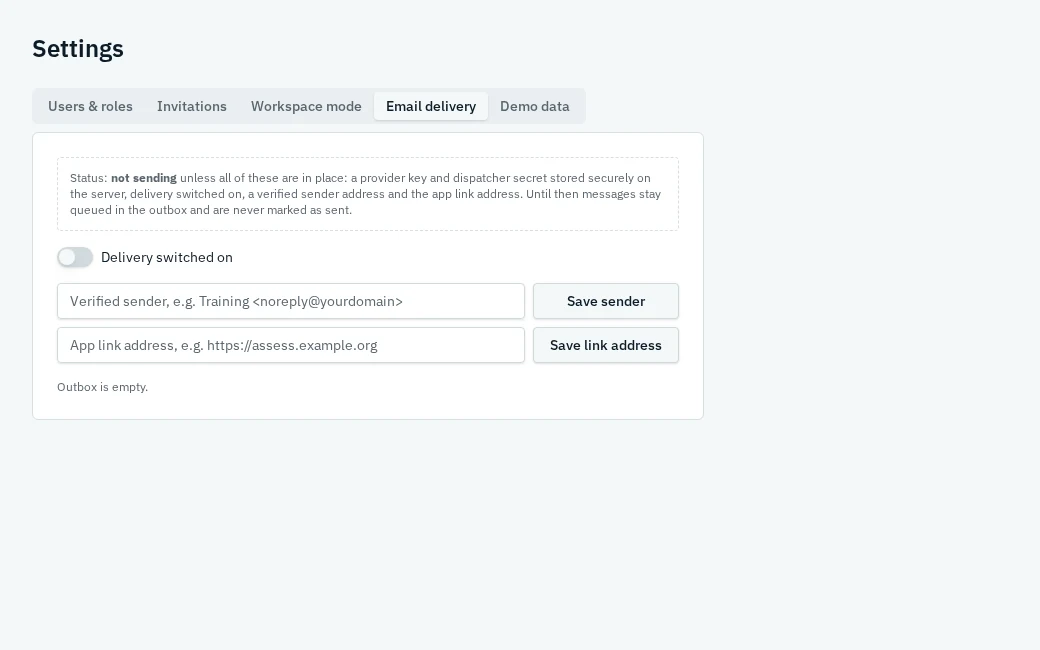
  4. Use Email delivery to enter a verified sender and the app link address. Secure provider credentials and the dispatcher secret are configured separately by the project operator.
  5. Leave delivery off until setup is complete. Assignment invitations/reminders can be previewed and copied; queued messages are not evidence of delivery.
  6. Check outbox status for queued, sent or failed work. Daily reminders are queued at 06:00 UTC, with duplicate prevention, retries and logs; completed, cancelled and expired assignments are excluded.
  7. Use Demo data only for explicitly labeled examples, not real assessment records.

Important

  • Current setup limits: ownership remains unset; email delivery has not been verified and remains disabled pending provider credentials, dispatcher secret, verified sender and app address.
  • Do not paste secret keys into shared notes or learner-facing pages. Delivery also requires a scheduled, secret-authorized dispatcher.
  • Do not assume a queued or copied message was sent. Delivery setup and mailbox receipt require separate verification.
  • Real records start empty. Demo data is labeled and does not substitute for real results.
Settings tabs and protected role management
Settings tabs and protected role management · Documentation preview
Email delivery configuration with sending switched off
Email delivery configuration with sending switched off · Documentation preview
13Everyone

Status meanings & common problems

Read the status before deciding what action is needed.

  1. Pending: assigned but not started. In progress: an attempt is open. Submitted-awaiting-review: manual grading is outstanding.
  2. Passed: fully graded and meets the threshold. Failed: the graded attempt did not meet it. Overdue: the due date has passed without the required completion; allowed late work may still be possible.
  3. No assignments: confirm your verified email matches the roster; ask a facilitator to check assignment creation.
  4. Cannot publish: check flagged questions, missing/invalid keys and whether the draft has questions.
  5. Cannot assign: check that a version is published, the group is accessible and people belong to its roster.
  6. No staff access: an administrator must invite your verified email and grant the appropriate group membership.
  7. Email did not arrive: distinguish account-confirmation mail from assessment invitations; check spam and ask the administrator to inspect delivery/outbox setup.
  8. Evidence incomplete: open the competency gaps, supply the missing applicable evidence or attestation, and seek qualified review.

Important

  • Cancellation and expiry can block an assignment independently of its score status.
  • Archiving preserves history; it is not a request to erase records. Ask your organization about retention and correction policies.